Air Inspection Automation

Drone inspection missions for electric towers, planned from LiDAR

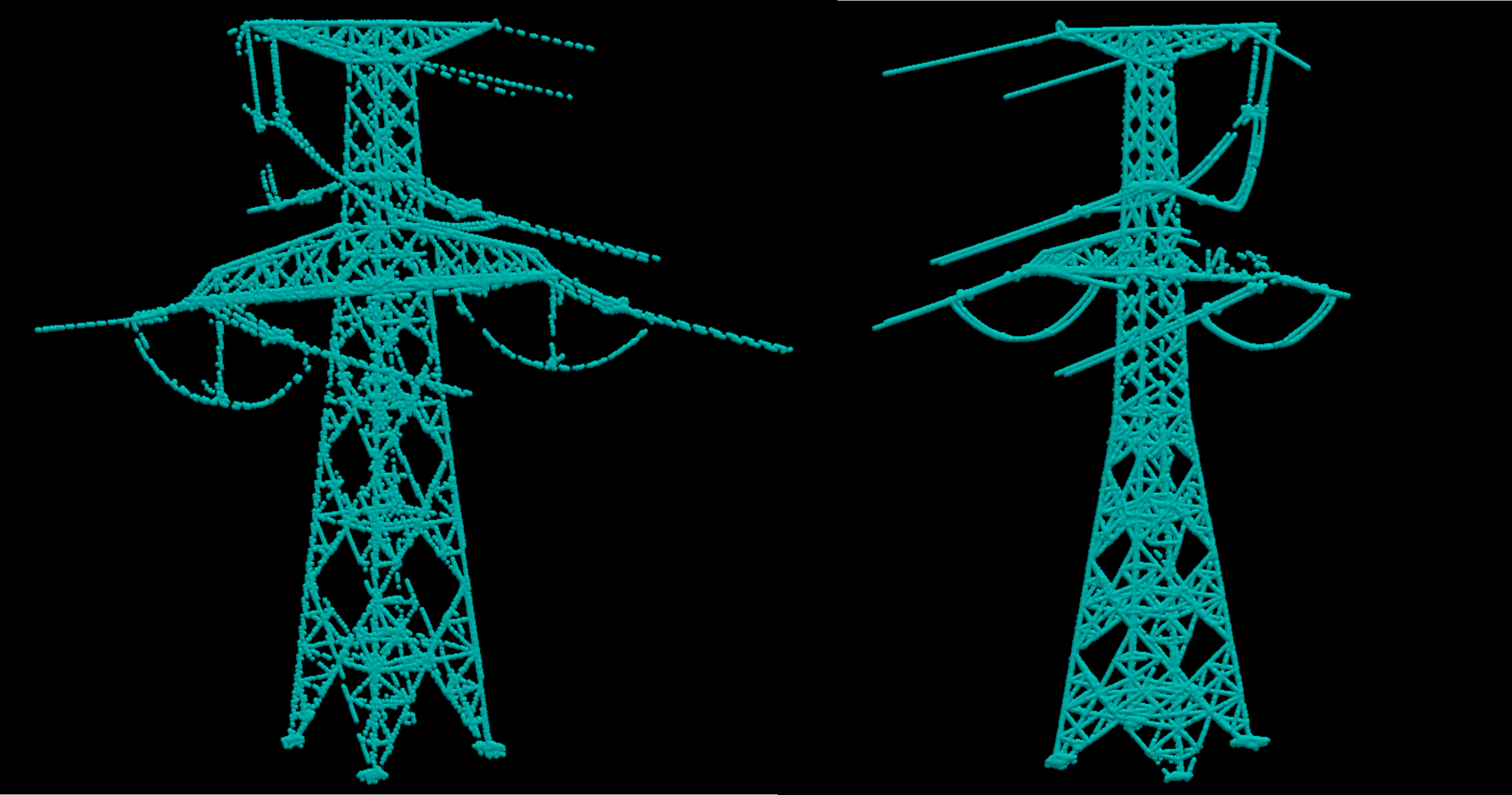
AiA reads the point clouds of a whole power line corridor, finds the towers, places the photo stops and checks each one for clearance. You get DJI missions split into battery flights, and a 3D replay of every flight before the crew drives out.

Windows 10 and 11. One month free on one computer, no card required.

Mission playback in AiA, rendered from a real corridor scan: the planned flight around a tower, with the drone camera's view in the inset.

How it works

Six steps from a raw corridor scan to reviewed inspection photos. Each step is a page of the desktop app.

  1. 1Process the scans
  2. 2Build the route
  3. 3Place photo stops
  4. 4Check and plan
  5. 5Export for DJI
  6. 6Replay and review

Step 1 LAS Processing

Process the whole corridor at once

Add every LAS or LAZ file of a line to one project. AiA separates ground from structure and finds the towers, with no manual marking.

LAS files

riverside_north.lazClustered
riverside_mid.lazClustering
riverside_south.lazProcessing

Coordinate system EPSG:3006 (SWEREF99 TM), read from the LAS headers
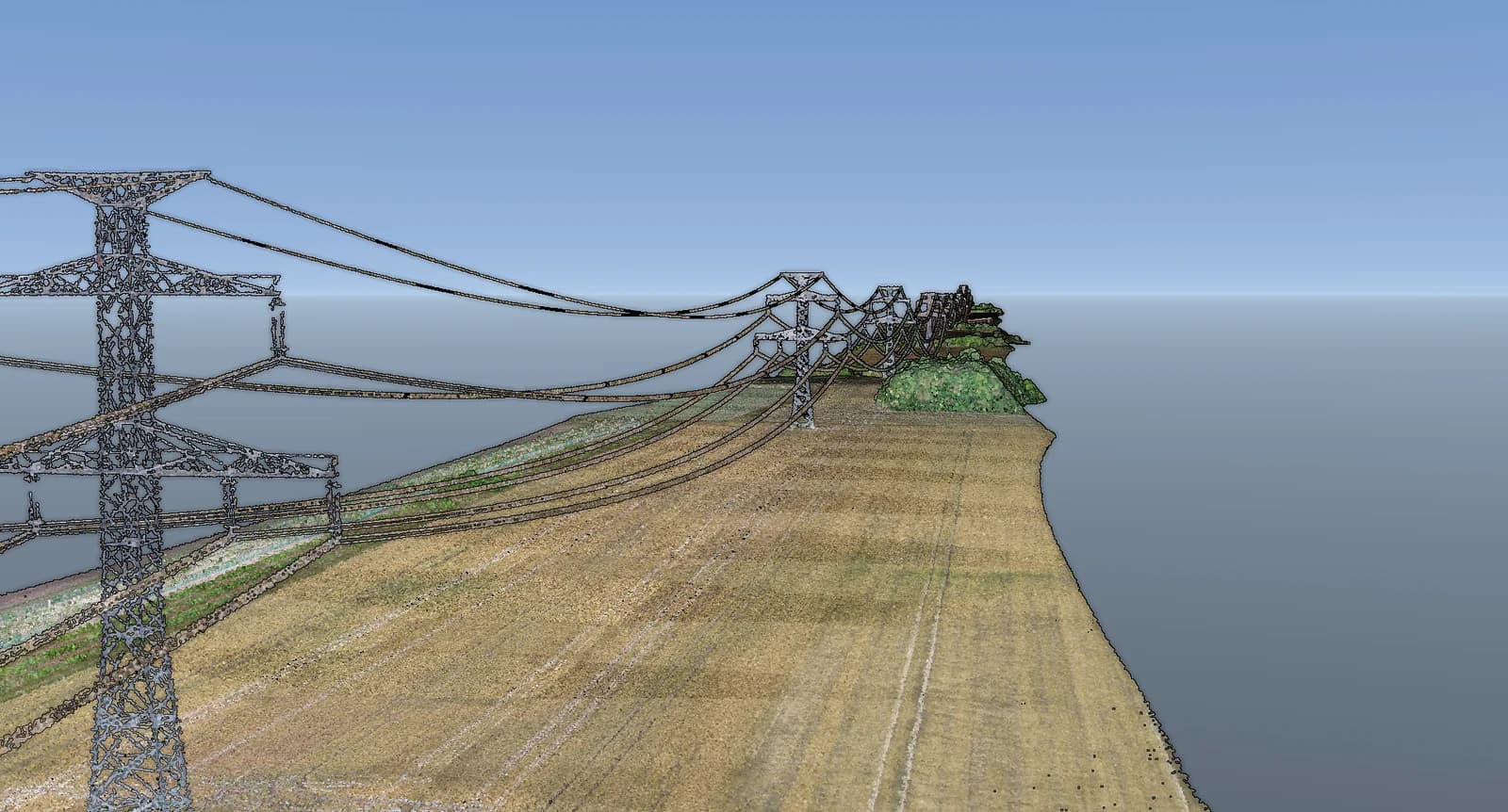
Processed LiDAR point cloud of a power line corridor with lattice towers and conductors
Five scans of one line, viewed together in the LAS viewer.
  • Ground filtering, voxel grids and tower clustering run on several files in parallel, with a status for each file.
  • Towers that straddle two files are merged into one.
  • Vegetation classes can be left out before clustering.
  • The coordinate system is read from the LAS header (SWEREF 99, UTM, EOV or any EPSG code), or set by hand.
  • Your original files are copied into the project and never modified.
Step 2 Mission Builder

Pick the towers and split the route into battery flights

Choose the towers to inspect. AiA orders them along the shortest route, works out how many flights the batteries need and places a launch and pickup site for each flight.

Nine towers along a power line, flown as two battery flights: flight 1 from launch L1 over towers 1 to 5 to pickup P1 at a car park, flight 2 from launch L2 at the same car park over towers 6 to 9 to pickup P2.123456789L1P1L2P2Flight 1Flight 2Battery swap at the car park

Flight 1 · L1 to P1 · towers 1-5 · ~16 min

~34 % left · reserve 20 %

Flight 2 · L2 to P2 · towers 6-9 · ~13 min

~41 % left · reserve 20 %

Planned flight from a launch site around two power towers in a LiDAR scan to a pickup site
One flight from launch site L1 to pickup site P1, stopping for each photo on two towers.
  • Keep your own tower order or let AiA optimize it.
  • The number of flights follows your battery reserve, flight speed and hover time per stop.
  • Drag a launch and pickup pair to where the crew can actually park.
  • Each site is checked for a clear climb to takeoff height.
  • Site ground heights come from the scan, or from the terrain model when a site is off the scanned area.

Step 3 Tower editor

Place the photo stops from templates

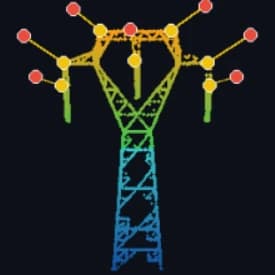
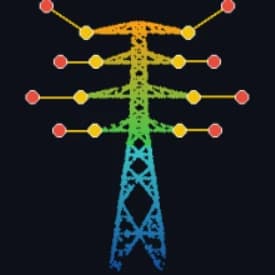
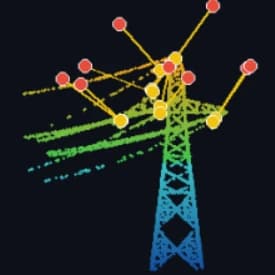
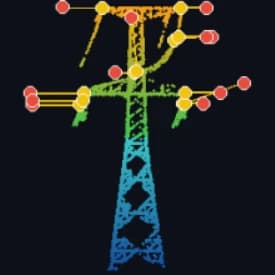
A template holds the photo stops of one tower design and fits them to every tower of that design. Adjust any stop in the 3D tower editor.

  • Portal suspension tower template with its photo stops

    Portal suspension

  • Double circuit tower template with its photo stops

    Double circuit

  • Angle tension tower template with its photo stops

    Angle tension

  • Double-circuit tension tower template with its photo stops

    Double-circuit tension

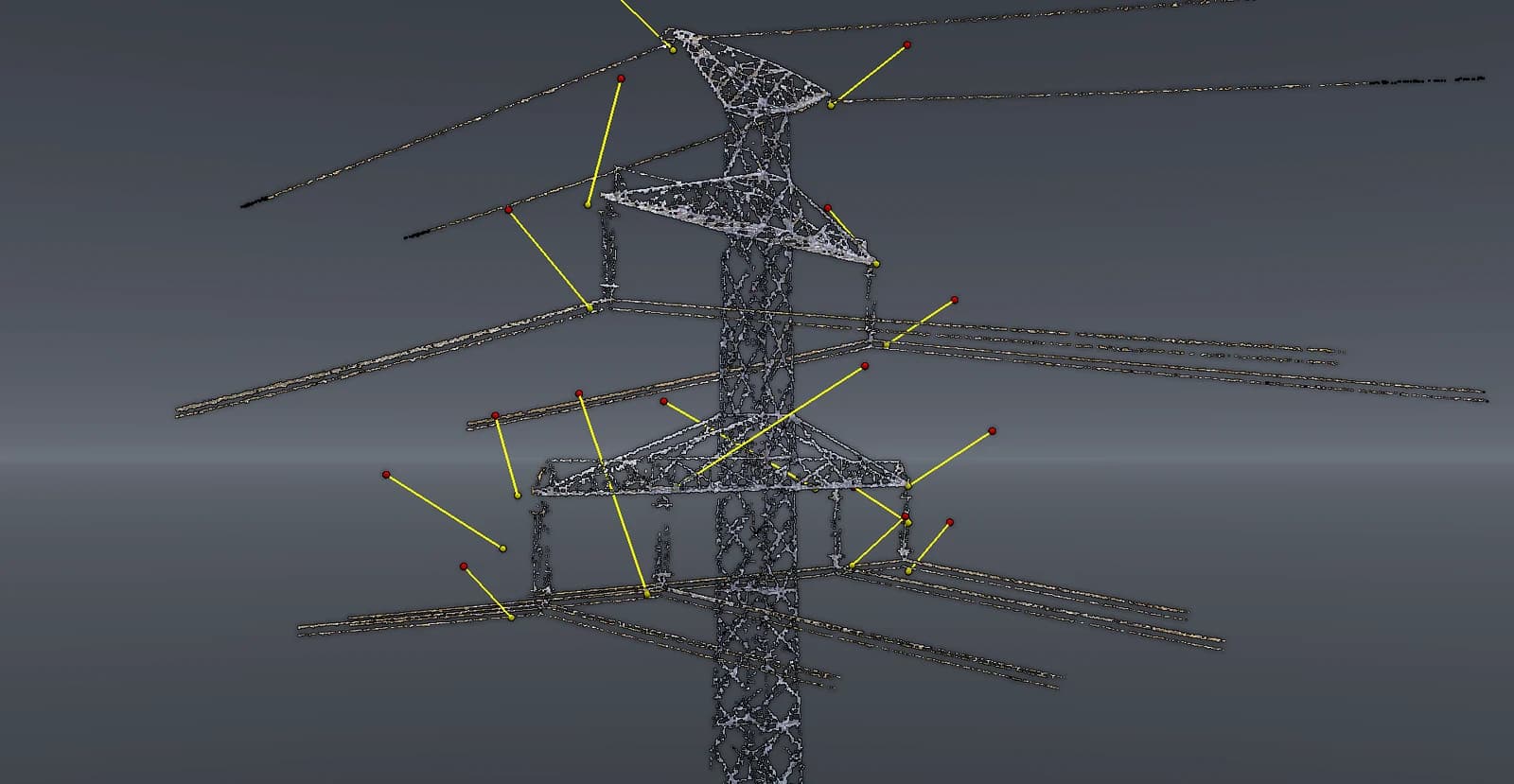
Lattice tower in the tower editor with red drone positions linked to yellow photo targets
Photo stops on one tower. The drone hovers at the red points and photographs the yellow ones.
  • Templates are matched to towers by shape, so one template covers every tower of the same design on the line.
  • Mirror stops across the tower, and set distance, yaw and gimbal pitch for each stop, with undo and redo.
  • Open the camera view to see the frame each photo will have before anything is flown.
Drone camera preview of a crossarm with insulator strings
The camera view from one stop, framed as the photo will be.

Step 4 Mission Planner

Check every point, then plan a collision-free path

Each stop, site and path segment is checked against the scan. RRT* then plans a path for every battery flight that keeps a safe distance from wires and steel.

A lattice tower with two photo stops: one passing its clearance, descent, view and camera aim checks, and one whose descent is blocked by the crossarm below it.1234!
  1. 1Clearance. No structure within the safe distance, 3 m by default.
  2. 2Climb and descent. A clear vertical corridor to climb out and land.
  3. 3View. Nothing between the drone and its photo target.
  4. 4Camera aim. Gimbal pitch and yaw inside the aircraft's limits.
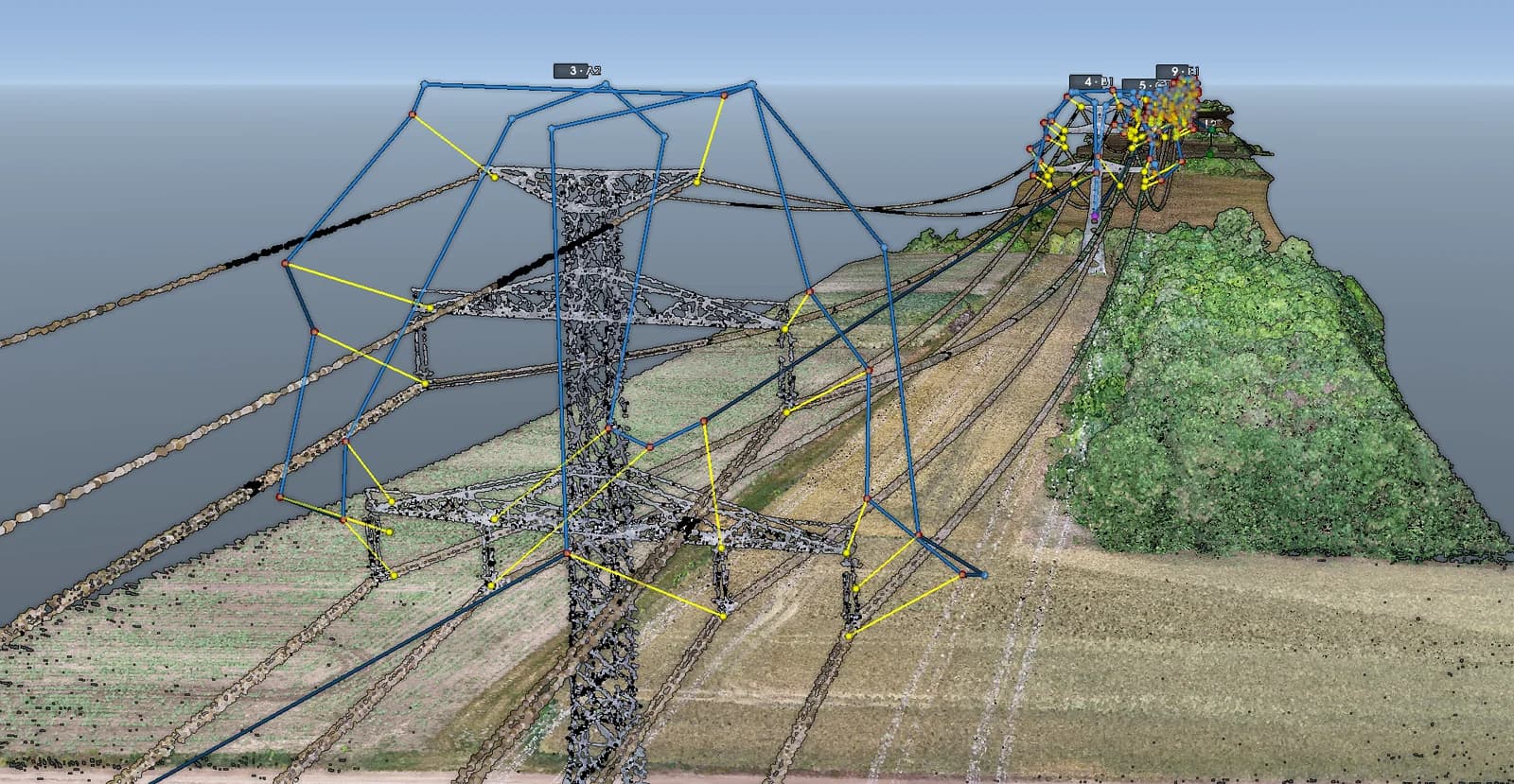
Planned flight path drawn in blue around a lattice tower, with the next towers of the flight behind it
The planned path (blue) around one tower in the mission editor, with the next towers of the flight behind it.
  • The safe distance is configurable, 3 m by default. Flying under overhead structure stays off unless you allow it.
  • Planning will not start on an unsafe point. It names the point instead.
  • Double-click a finding and the camera flies to it.
  • Retry only the legs that failed, drop waypoints that are not needed and edit any waypoint by hand.
  • Every flight gets a distance, duration and battery estimate, flagged when it goes over a limit.

Safety violations

Violations (1) · All 214 item(s) checked

1. No clear descent: T7 - Action point 3

Blocked descentT7 - Action point 3

No clear vertical corridor below the point

Obstacle about 1.8 m below within 3.00 m

The drone cannot climb to or auto-land from this point: structure is directly beneath it within the 3.00 m safety radius.

Step 5 KML Generation

Export DJI missions and a driver sheet

Write DJI Terra KML or DJI Cloud API KMZ files, one per battery flight, plus a printable sheet that tells the driver where to stop.

Export summary

Flights
2, one KMZ per flight
Drone and payload
Matrice 4E, built-in camera
Altitude mode
Above sea level (EGM96)
Speed
4.5 m/s
Takeoff height
30 m
Gimbal and zoom
-20°, 2.0x
Safe distance
3 m

Driver sheet: Riverside Corridor

2 flights, printed with the export

Open the whole drive in Google Maps

Flight 1: L1 to P1

5 towers (1 to 5), about 16 min in the air

Take off
L1
Coordinates
Map | Directions
Land
P1
Coordinates
Map | Directions

Flight 2: L2 to P2

4 towers (6 to 9), about 13 min in the air

Take off
L2
Coordinates
Map | Directions
Land
P2
Coordinates
Map | Directions
The driver sheet: each flight's launch and landing site, with map and directions links. Coordinates are blurred here.
  • Review a summary of every setting before any file is written.
  • Altitudes in EGM96, WGS84 ellipsoid or relative to ground.
  • Made for the DJI M350 RTK, M300 RTK, M30, Mavic 3 Enterprise, Matrice 3D and Matrice 4 series.
  • The KML/KMZ validator compares two exports tag by tag.
  • Mission files (.miz) carry a planned mission to another computer without its LAS files.

Step 6 Mission Execution

Replay the flight and review the photos

Watch the mission in 3D from the drone camera or a chase view before anyone drives out. After the flight, AiA matches the drone's photos to their stops.

9 towers · 2 flights · 48 photos29:54

  • Drone camera view of a crossarm with insulator strings and conductors
  • Drone camera view of a lattice tower standing among trees
  • Drone camera view of the top of a lattice tower against the sky
  • Drone camera view of a tower's lattice bracing
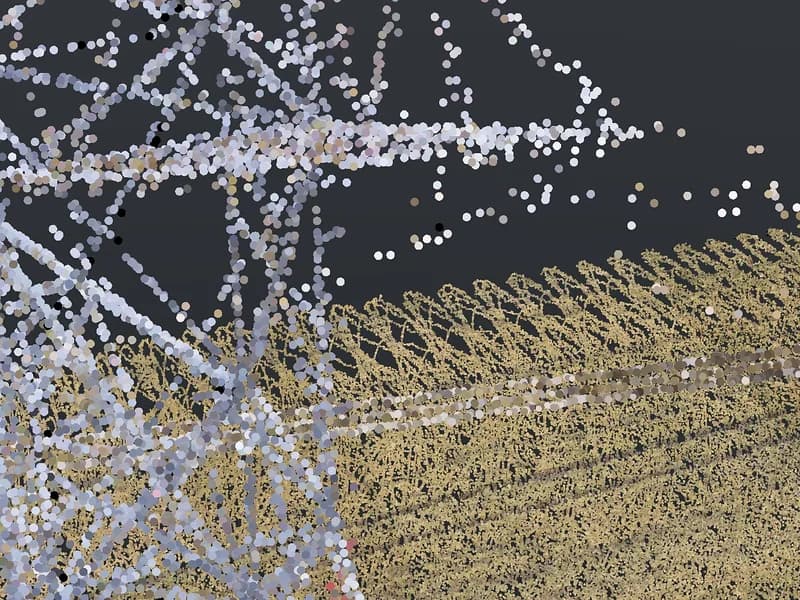
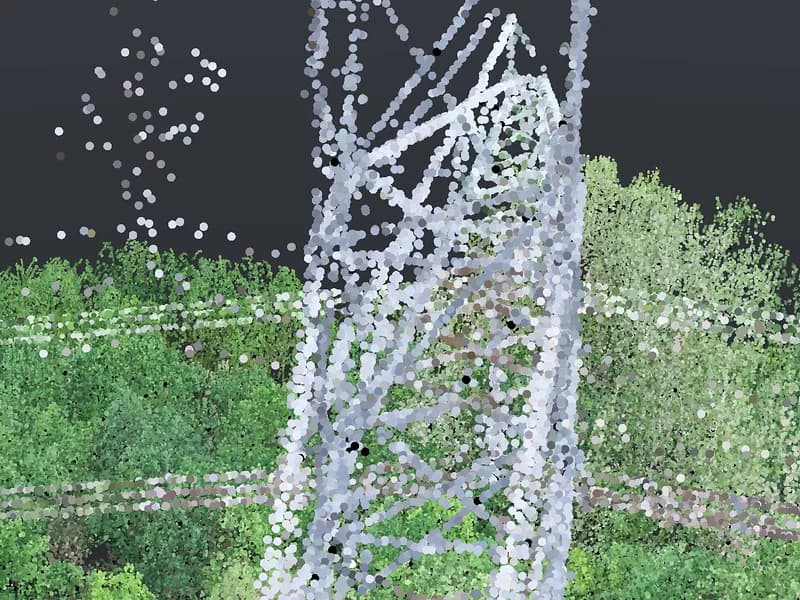
Planned shots from the drone camera during playback, rendered from the scan.
  • Jump tower by tower or photo by photo, at 0.25x to 32x speed.
  • Safety findings and photo frames are drawn along the path.
  • Photos are matched by GPS position, time and sequence (beta).
  • Matched photos are filed under their tower in the tower library.

Made for repeat inspections

Work done on one scan carries over to the next, and everything runs on your own Windows computer.

Tower library
Keep each inspected tower with its photo stops. On next year's scan, AiA aligns the tower to the new points and carries its stops across, next to the photos of earlier flights.
Maps that work offline
Each project stores its own street map, satellite imagery, roads and terrain, so maps and off-scan ground heights keep working in the field without a connection.
Portable missions and towers
Mission files (.miz) move a planned mission to another computer without its LAS files. Tower files (.toz) share towers with their scan and photo history.
Direct technical support
You talk to the people who build AiA. We answer quickly when an inspection is waiting, and add features our customers ask for.
Tower details
Name
Riverside Corridor 12
Height · photo stops
38.4 m · 12 pairs
Photo history
24 photos, last 2026-09-12

LAS history

v1riverside_2025.laz2025-06-11
v2riverside_2026.laz2026-06-03

Bold: the scan the photo stops were last saved on.

A tower in the library, with the scans it was inspected on.

Technical specifications

Open a row for the full details.

  • Input: LAS and LAZ, several files per project.
  • Output: KML for DJI Terra and KMZ/WPML for DJI Cloud API, one file per battery flight.
  • Also: driver sheet, mission files (.miz) and tower library files (.toz).

  • Read from the LAS headers, such as SWEREF 99, UTM or EOV, or picked by hand.
  • LAS heights: ellipsoidal (WGS84) or mean sea level (EGM96).

  • EGM96 above sea level, WGS84 ellipsoidal, or relative to ground (AGL).

  • DJI M350 RTK, M300 RTK, M30 and M30T, Mavic 3E, 3T and 3M, Matrice 3D and 3TD, Matrice 4E, 4T, 4D and 4TD.
  • Payloads: Zenmuse H20, H20T, H20N, H30 and H30T, and the drones' built-in cameras.

  • Configurable safe distance, 3 m by default. Flying under obstacles is off by default.
  • Battery reserve, maximum flight distance and hover time per inspection.

  • OpenStreetMap, Sentinel-2 imagery and roads stored per project.
  • Copernicus terrain model. Google Maps and Google Elevation are optional, with your own key.

  • Windows desktop app, from the Microsoft Store or as an installer for offline sites.
  • English, with machine-translated Hungarian, Swedish, German, French and Spanish.

  • Online account with an emailed sign-in code, or a signed offline license for computers without internet.
  • One month free on one computer.

About Air Inspection Automation

AiA is research-driven mission planning software for electric tower inspection, built and maintained in Linköping, Sweden. Its planning methods follow current research in motion and mission planning.

The aim is practical: missions that inspection crews can fly safely and repeat on the next survey. We provide continuous technical support and adjust the software as our customers' field requirements change.

Based in
Linköping, Sweden
Focus
Mission planning for electric tower inspection
LinkedIn
Dominik Frey

Talk to us about your inspections

Tell us about your lines, drones and scans, and we will show you how AiA fits your workflow.